
Starting with version 2026.07.31, Beach Buggy Racing 2 supports sign in and account security with Google Play Games (Android), Game Center (iOS), and Amazon (Fire Tablet). Read more about the change and our future plans here.
If you are a new player, this change is pretty simple: you just click the “Sign in” button on the Account screen and follow the on-screen prompts. Easy peasy.
If you are an existing player and you use the old BBR2 email system to save your account online, you will need to migrate your email-secured save game to the new game-service system.
THIS IS IMPORTANT: You can only have one BBR2 save game associated with each game service profile. So before you migrate your account, be sure that (1) you are signing into BBR2 with the correct game service profile and (2) you have the correct game you want loaded in BBR2.
These steps are to help you make sure you’re set up for success.
Step 1: Before you start the gamE
Before you start Beach Buggy Racing 2, make sure that you are signed in to the game services profile you want to use for your BBR2 save.
For Android (Google Play Games):
BBR2 will use the Play Games profile you specify when you start the app.
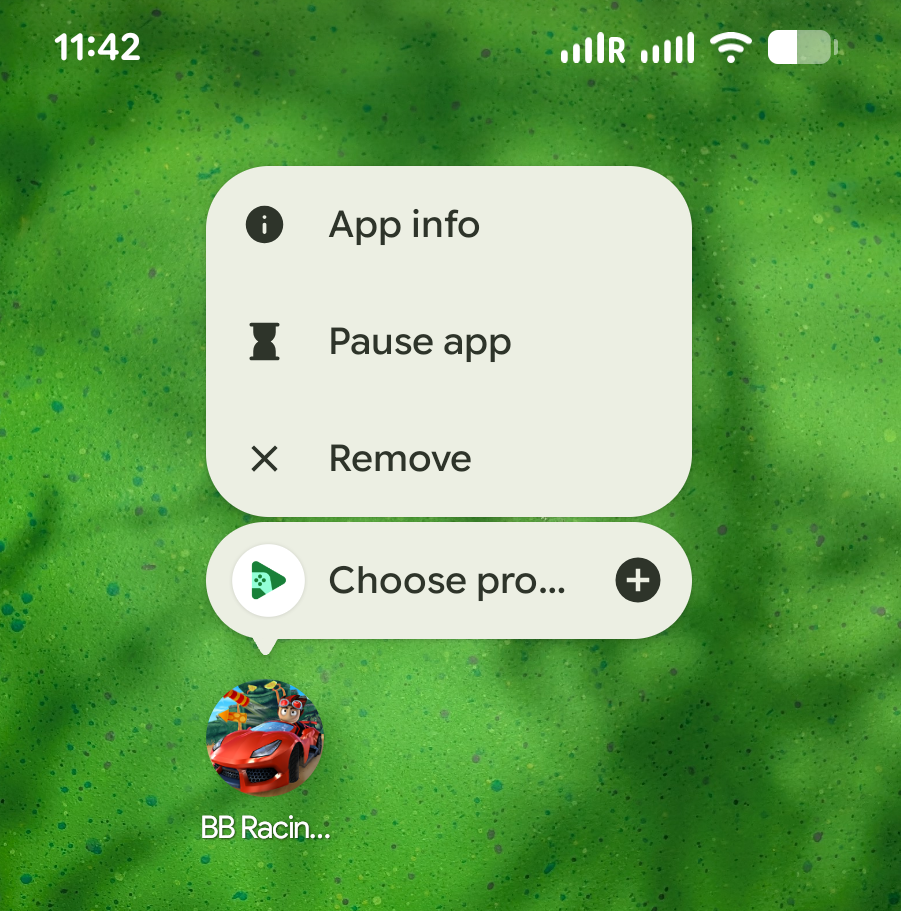
Long-press on the Beach Buggy Racing 2 icon
On the popup menu, select the last item with the Play Games icon that says “Choose profile”
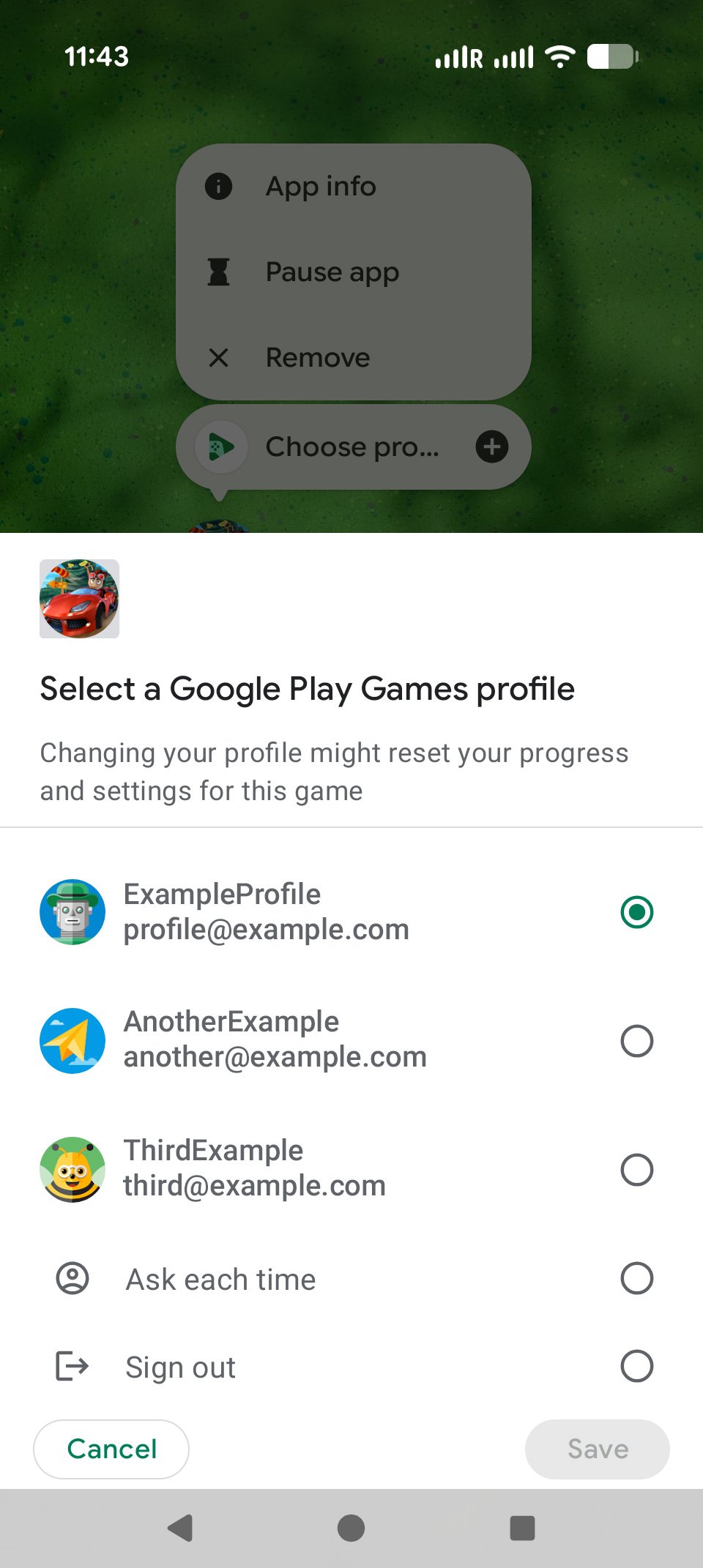
On the screen titled “Select a Google Play Games profile”, pick the profile you want to use.
Press Save
For iOS (Game Center):
BBR2 will use the Game Center profile you currently have selected in Game Center Settings.
Open “Settings” on your device, and navigate to “Game Center”
Check to make sure your “Profile” is set to the profile you want to use for your BBR2 save game
If you want to use a different profile, scroll to the bottom of the screen, tap “Sign Out” and then sign in with the credentials of the profile you want to use.
For Amazon
BBR2 will use your currently loaded Amazon user profile to sign in.
For more information on managing and switching Amazon user profiles, please see the Amazon help article Switch User Profiles on Your Fire Tablet.
STEP 2: START BBR2
Tap the BBR2 icon to start the game.
If you were already playing BBR2 with your regular save game, it should start up normally, and you should see the screen with the race posters and the Star Tiki.
If you see the “New Game” screen — see “If you the New Game screen on startup” below.
Step 3: VERIFY The BBR2 Save Game
Before you migrate your BBR2 save game to your profile, check to make sure you have the correct save game selected.
Tap the Settings button in the upper left (the one with your player name next to it.)
On the Profile tab, tap the button at the bottom that shows your name and “Manage Account”
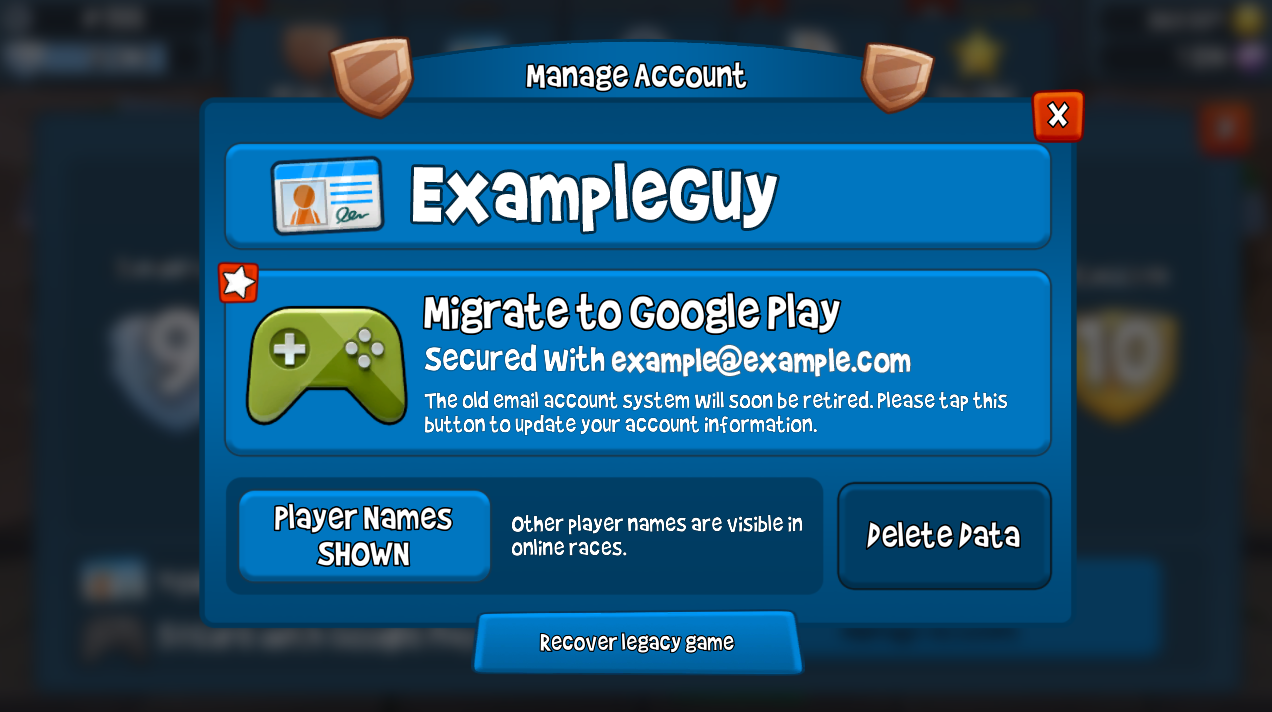
On the Manage Account screen, check to make sure that the Player Name and Email both belong to the account that you wish to migrate.
If everything looks good and you’re ready to migrate — go to Step 4.
If you want to migrate a different BBR2 save game:
Tap the “Switch account” button at the bottom of the Account Management screen.
Enter the email and password of the game you want to migrate
Repeat Step 3: Verify the BBR2 Save Game
Step 4: Migrate your account
Once you are sure you are signed in to the save game you want to migrate, follow these steps:
Tap the big button in the center of the screen that says “Migrate to Google Play” (or Game Center, or Amazon).
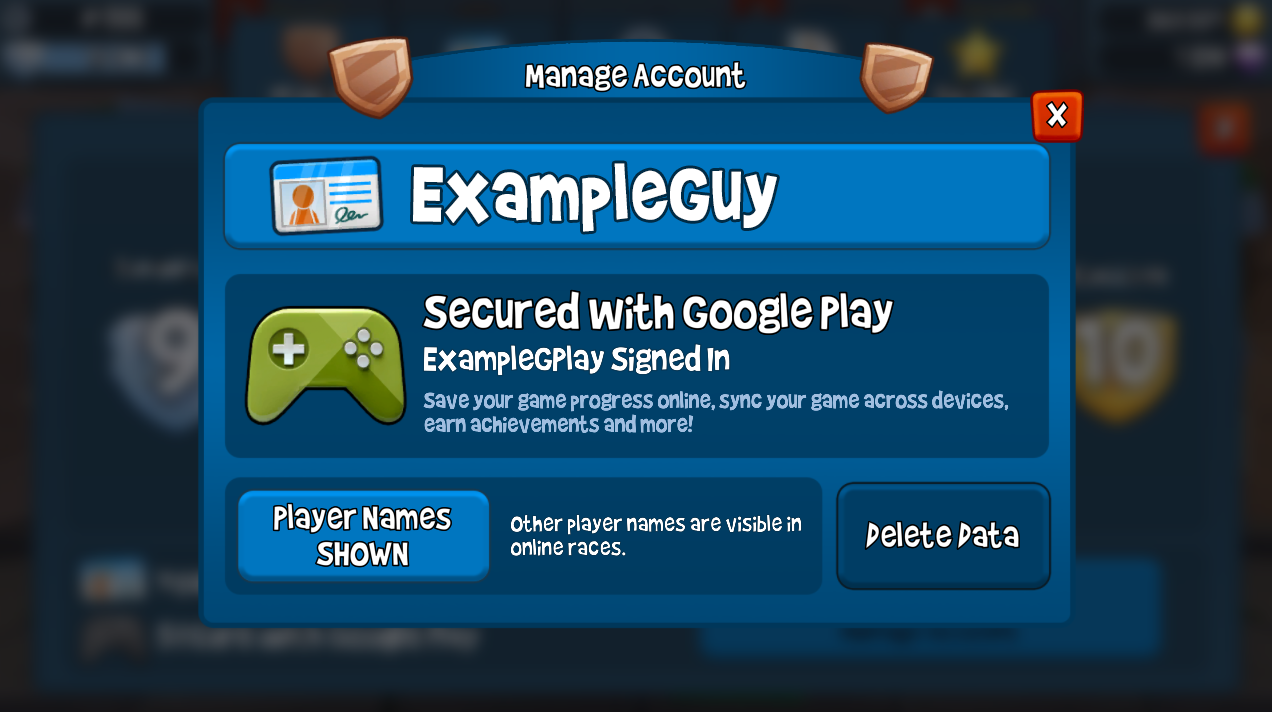
The game will link your BBR2 save game to the game service profile.
When you are done, it should look like this:
For most people, that’s it! You’re all done.
However, if you have multiple alt accounts, you need to do additional work. See below.
If you want to migrate additional SAVE games
If you have multiple alternate BBR2 save games using the old email system, you now need to associate each BBR2 save game with a unique game service profile. You cannot have multiple BBR2 save games attached to a single game service profile.
To do this, repeat the steps listed above for each account.
Follow the steps above to migrate your first account
Quit BBR2
Switch to a different game service profile (see Step 1 above)
Start BBR2 — this time you should see the “New Game” screen
Tap the “Sign in with email” button
Enter the email and password of the account you want to migrate to this game service profile
Follow Step 3 and Step 4 above to migrate your account.
You can repeat this as many times as you want. After you have migrated each save game, you can switch between save games by selecting a different profile when you start the app:
If you see the New Game screen on startup
If you see the New Game screen on startup, it means that there is no BBR2 save game associated with your current user profile. You might see this if you just installed BBR2 and are starting a fresh game. You could also see it if you recently switched to a profile that doesn’t have a save game associated with it.
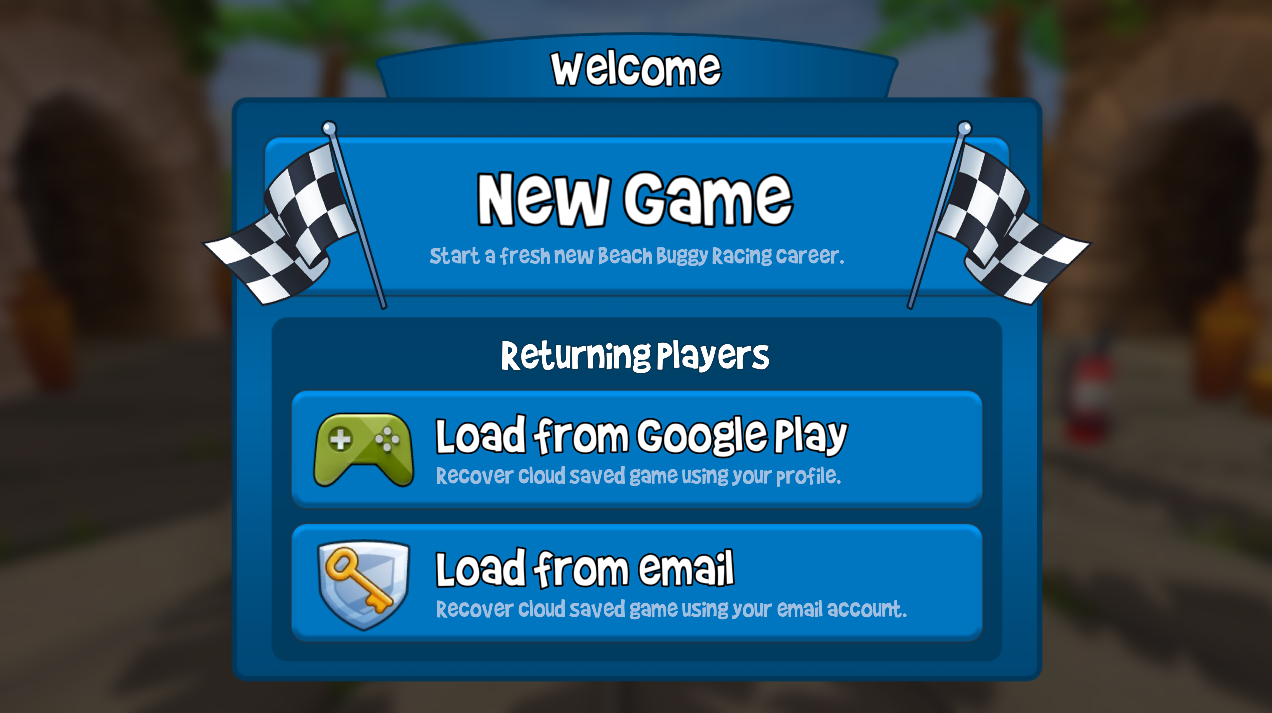
From here you have several choices:
New Game
Choose this option if you just installed BBR2 and are beginning a fresh game. You can also choose New Game if you recently switched your game service profile and you want to begin a fresh game with that profile. DO NOT choose this option if you are a returning player and you want to load an older game.
Load from Google Play (or Game Center, or Amazon)
Choose this option if you are a returning player and you want to load the save game associated with your current profile. DO NOT choose this option if you are a new player, or if you are a returning player who wants to load their old email-secured save game.
Load from Email
Choose this option if you are a returning player who previously secured their save game using the old email account. This is the option you want to pick if you are migrating multiple alt accounts and recently switched to a blank game service profile.
If you link the wrong accounts
Don’t worry! Your save game data is preserved in our servers. If you accidentally link the wrong BBR2 save game with your game service profile (or link the wrong profile to your BBR2 save game):
Quit BBR2
Email support@vectorunit.com
Be sure to include BOTH your BBR2 username AND your game service profile name (gamertag)
The support team will assist you in un-linking your accounts so you can start again.
How to set up cross-play
If you play on two different platforms (for example an Android phone and an iPad) and you have an existing email account you can set up your game to keep playing on both platforms.
IMPORTANT: Before you do this, make sure that you have installed BBR2 version 2026.07.31 or newer on both platforms. Do not try to do this with an older version of BBR2.
Once you have the latest version installed on both platforms, you can simply migrate your old email save game over to the profile on your first platform. Then change to the second platform and migrate your save game over on that platform.
Note: We do not yet support cross-play for new BBR2 players. We plan to add support for this in a coming update.